USB-C vs USB-A SD Card Readers for Camera Footage Backups

Affiliate disclosure: Gear for Greatness may earn from qualifying Amazon purchases at no extra cost to you. This is a researched equipment comparison, not a claim of personal product testing.
Start with the ports you actually have
Backing up camera footage on location can be slowed by something as ordinary as the connector on a card reader. USB-A readers remain useful with many desktop computers and older laptops; USB-C readers fit newer mobile workstations and some phones or tablets. The physical plug alone, however, cannot tell you what transfer speed the reader supports. A USB-C reader with a basic internal interface may be slower than a well-designed USB-A reader on a suitable port. Start by listing the devices you use for ingesting footage, the SD card type you own and where your backups need to go.
Understand the SD card before choosing a reader
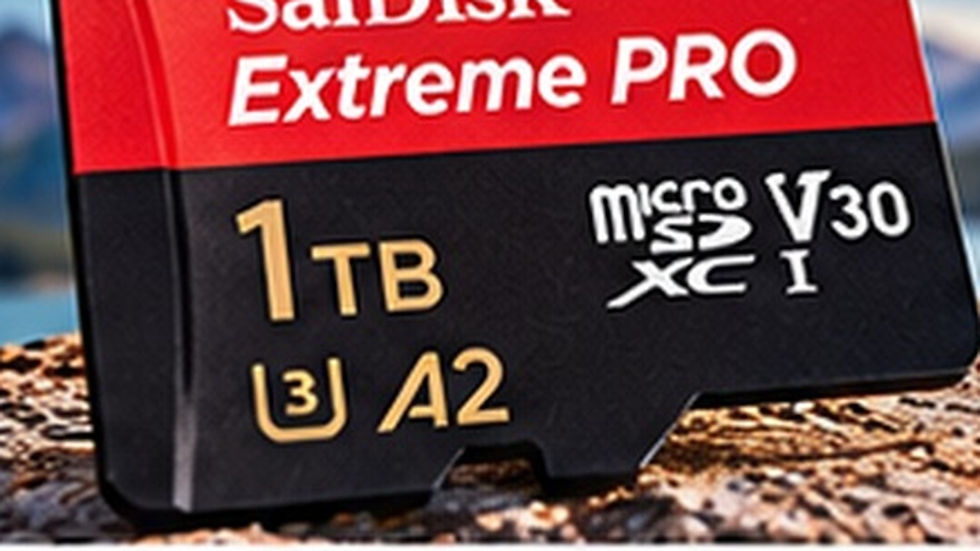
SD cards have several different performance markings. UHS-I and UHS-II describe bus interfaces; U1, U3 and Video Speed Class markings indicate different minimum sustained-write classifications under the specified conditions. Those numbers do not mean every reader or computer will reach the speed printed on the card. A UHS-II card can usually be read in a compatible UHS-I device at reduced bus performance, but that does not turn a UHS-I reader into a UHS-II reader. Check the exact reader specification instead of assuming an expensive memory card fixes a slow transfer.
USB-C readers: convenient for modern kits
A small USB-C reader can reduce adapter clutter when a laptop has no full-size USB-A port. It is especially convenient if you work directly from a compact travel laptop or a compatible tablet and want to move recorded files into a structured folder. Some models combine SD and microSD slots, but simultaneous operation varies by product. A short integrated cable can reduce strain on the laptop port when the reader is resting beside the computer, whereas a bulky rigid reader may block neighbouring ports. Neither shape automatically guarantees better data integrity.
USB-A readers: still practical on a fixed desk
A quality USB-A reader can be the simplest choice for a computer with several conveniently placed ports. If you already have a reliable USB-A reader that supports your card's interface and transfers at a useful rate, changing to USB-C purely for the connector may offer no benefit. Some editing workstations also have USB-A ports on the front panel, making card swaps easier than reaching around the back. Avoid using an unpowered hub with many busy peripherals when troubleshooting inconsistent transfer speeds; test the reader directly against the computer first.
What matters more than the plug shape
For camera footage, reliable file handling usually matters more than saving a few minutes on transfer. Look for a firm card slot, a housing that does not twist the card when inserted and clear documentation about SD and microSD support. Verify the reader's advertised transfer protocol and the host computer's capabilities. Consider whether the laptop cable arrangement leaves the card protruding where it could be bumped. Do not pull out a card while a transfer or verification task is still running. A faster reader is not a substitute for confirming that the files arrived intact.

A field-backup workflow worth following
Before leaving a shoot, create a destination folder with a consistent date and project name. Copy the original video files and supporting metadata rather than manually selecting only the clips that appear important. When the copy finishes, compare file counts and folder sizes, and open representative files from the destination. For irreplaceable client work, make a second independent copy before formatting the card in the camera. Keep used and cleared cards physically separated. Readers do not protect against accidentally overwriting the wrong folder or formatting media too early.
When a USB hub enters the picture
A multifunction USB-C hub can add useful ports, but its card-reader slot may share bandwidth with other connected devices. The manufacturer may not clearly state the internal reader's actual capability, so compare specifications rather than assuming a hub with an impressive headline speed will match a dedicated UHS-II reader. A dedicated reader is often easier to troubleshoot because it has fewer competing functions. For occasional use, a reputable hub may still be perfectly adequate. Pick based on your actual card interface and workflow, not the number of ports printed on the packaging.
Buying checklist
First, identify whether you use full-size SD, microSD or both. Second, confirm whether the reader supports UHS-I or UHS-II as needed. Third, match its upstream USB interface to an available computer port. Fourth, check the reader's physical design, including access around adjacent connectors. Fifth, read the manufacturer's operating instructions and evaluate warranty and return terms. If a reader is sold with a cable, verify whether that cable can be replaced. A compact design is useful only if it fits your particular desk or travel bag.
Frequently asked questions
Will a USB-C reader always copy photos faster than USB-A? No. Both connector families can be used with different underlying USB implementations; the card, reader, host and storage drive all influence throughput. Can a reader damage an SD card? Rough insertion, bent contacts or poor-quality mechanisms can physically damage media, so never force a card into a slot. Can I edit directly from the SD card? Some setups permit it, but copying footage to appropriate working storage and making a backup first provides a more controlled workflow. Does a new card reader eliminate corrupted files? No. It can solve a faulty-reader problem, but corruption may also come from the card, camera, interrupted transfers or storage issues.
Which should you buy?
Choose USB-C when it fits your current laptop or tablet without an awkward adapter. Choose USB-A when your existing desktop layout and ports make it the easiest reliable connection. In either case, prioritize documented SD interface support, sound construction and predictable file-transfer behaviour. If you routinely record high-bitrate video on UHS-II media, verify that every component in the transfer chain can take advantage of the card's interface. This comparison is based on published technology characteristics, not personal testing of the linked products.
Compare reader options on Amazon
Option 1 — Dedicated USB-C SD Card Readers
Option 2 — USB-A SD Card Readers
The links open Amazon search results, not a specific guaranteed model, price or inventory. Confirm compatibility with your cards and computer before buying.

Comments